Have you recently installed ‘Cricut Design Space‘ on your computer and want to learn how to use it? Here, you’ll learn the steps to use this software to create your first project. You’ll also learn the basic tools that are important for getting started with Design Space, along with detailed steps for creating a project. So, get ready with your Cricut machine, Cricut Design Space, and a basic paper or vinyl material.
Quick Summary
- Understand what Cricut Design Space is
- Learn the basic tools in Design Space
- Steps to create your first project
What Is Cricut Design Space?
Cricut Design Space is a free software used to create and send designs to your Cricut cutting machine. It is used for the Cricut Maker, Explore, and Joy series. You can download and install it on your PC or phone. Visit design.cricut.com/setup to install it on a computer; for mobile devices, install the Cricut Design Space App. Once installed, it lets you upload images, choose from thousands of ready-to-make projects, and use system fonts to create custom designs.
Understanding Cricut Design Space Home Screen
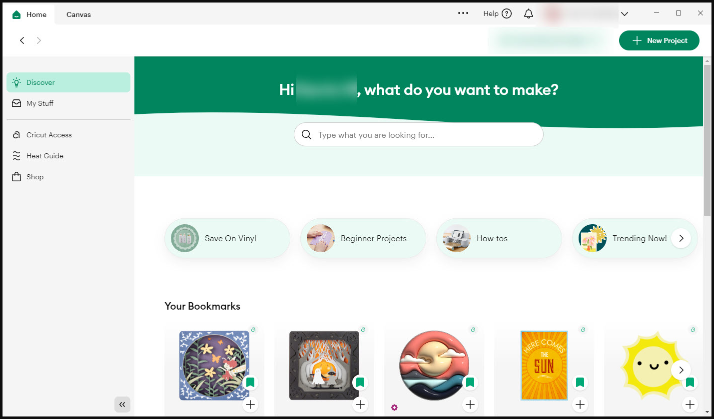
Let’s start with the Design Space home screen. It appears as soon as you open and sign in to your Cricut account. There is a search bar to find what you’re looking for, such as templates or designs. A “New Project” button is available in the top-right corner with a plus sign to create a new project on the canvas. Moreover, you’ll see a few options on the left side. Here is the list:
- Discover: Used to find popular projects, fonts, and ready-made designs.
- My Stuff: Here, you’ll find your saved projects, images, and bookmarked ones too.
- Heat Guide: Used to view instructions for heat-based projects.
To start a project, click the “New Project” option at the top to enter the canvas screen.
Basic Tools Every Beginner Should Know
Design Space has a range of useful tools to create professional-quality projects. However, as a beginner, you don’t need all of them. Therefore, here is a list of some of the app’s most commonly used features you should know.
Select Tool
It’s used to select and move a design element on the canvas. It is also used to adjust a design. You’ll need it often when creating a design project.
Resize & Rotate
These options are used to modify an image, text, or shape while working on the canvas. The resize option lets you drag the corners of an element to set its size. And the Rotate option turns an object by dragging the rotate icon or selecting the degrees in the edit bar.
Text Tool
The text tool is used to add and edit text for your projects. You can select fonts, adjust the spacing, and even change colors before finalizing the design.
Shapes Tool
It’s available on the left sidebar of the ‘Cricut Design Space Canvas‘ and is used to select from multiple shape options. You’ll get the simplest to the most complex shapes in this section.
Weld
The Weld option is used to connect two or more shapes or images into a single shape or image. It helps you create a single cut layer.
Attach
It’s available in the bottom right layers panel. The “Attach” option is used to lock two design elements to secure their position on the cutting mat. Otherwise, the design may misalign and may not cut precisely.
Slice
The slice tool splits two overlapping images or text layers into separate elements. Basically, it can cut one shape from another to remove unwanted spaces and create a custom shape.
Start Your First Design in Cricut Design Space
You’re on the canvas page where you can create a simple project. On the left panel, you’ll see a few options such as “images,” “shapes,” and “text.” You can use these options to create your design. If you click shapes, a list of shapes will appear. Follow these steps to complete your design.
- Select a simple shape such as a circle or square.
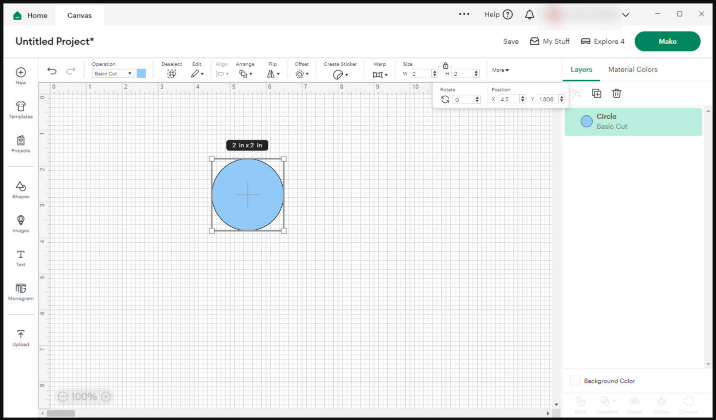
- Click the “Text” icon from the left sidebar, and type anything you want.
- Select a font of your choice from the top toolbar.
- Click and drag the corner of your text box to adjust the text on your image.
- When you’re comfortable with the size and position of your text, select the shape and text, and click “Attach” at the bottom right to keep them in the same position while cutting.
- If you want the text and shape to combine, select the Weld tool to convert two design elements into a single one.
Prepare Your Design
Preparing your design is an important part of creating your first project successfully. Follow these steps for that:
- Once your design is ready, click the “Make it” option.
- Then you’ll see the preview screen. This is where you can check how your design will look on the mat.
- Iron-on projects need the design to be mirrored, but regular paper or vinyl projects do not.
- Once everything is set, click “Continue.”
Cut Your First Cricut Project
On the preview screen, you can select your ‘Cricut machine‘ and choose the material. As a beginner, you can choose a normal paper or vinyl to create the project.
- Load your material on the StandardGrip cutting mat and align it just below the Cricut logo.
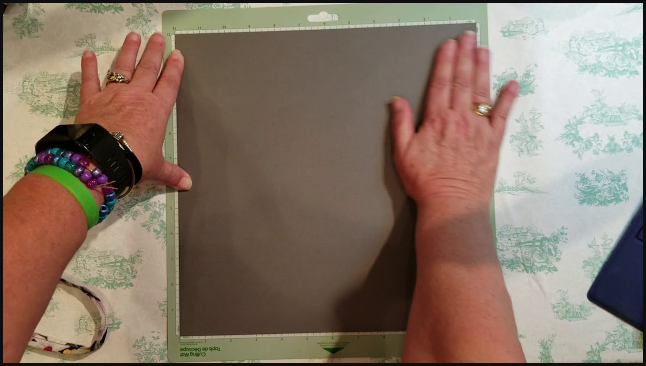
- Load the ‘cutting mat‘ into your machine, and press the Load button.
- Press the flashing ‘Go button‘ to start cutting.
- Once the cut is done, press the Load button once again to unload the mat.
- Now, your design is ready to use.
Over time, you can learn more ‘tools‘ and ‘tips‘ to create a custom design. Until then, practice these simple steps to create your first project.
Frequently Asked Questions (FAQs)
How to attach elements in Cricut Design Space?
Select two or more items, whether an image or a shape, and right-click on them. Select “Attach” from the bottom right layers panel.
How to start a new project in Cricut Design Space?
Open the Cricut Design Space Software, and click the “New Project” option with a (+) sign in the top-right corner to create a new project on the canvas.
How do I reinstall Cricut Design Space if the installation fails?
How do I reinstall Cricut Design Space if the installation fails? follow the process
- From the Start icon, search for Control Panel and select Programs and Features.
- Find Cricut Design Space and click Uninstall.
- Right-click the Windows Start icon and select Apps & Features.
- Find Design Space, and click Uninstall.
- Open File Explorer and navigate to C:\Users[Your Username].
- Find your software file and delete it.
- Visit design.cricut.com/setup on a browser, select your machine, and download the Design Space.